 Speichern
Eddystone-Einführung Ⅱ
3.How to set Eddystone-URL to Leuchtfeuer Gerät
Follow the steps below to add a new URL broadcast.


1. Open the FeasyBeacon and connect to the Leuchtfeuer Gerät


2. Add a new broadcast.
3. Select the Leuchtfeuer broadcast type
4. Fill in URL and RSSI at 0m parameter
5. Click Add.
6. Display the new added URL Broadcast
7. Click Save (Save the new added URL broadcast of the beacon)
8. Jetzt, the added beacon URL broadcast will show on Feasybeacon APP
Remarks:
Enable:  Circle one left, disable the beacon broadcast
Circle on Right ,Enable the beacon broadcast.
4 Was ist Eddystone-UID?
Eddystone-UID is a component of the Eddystone specification for BLE Leuchtfeuer. Es enthält 36 hexadecimal digits composed of 20 hexadecimal digits Namespace ID, 12 hexadecimal digits Instance ID and 4 hexadecimal digits RFU, split into 3 groups, separated by hyphens.
Eg.0102030405060708090A-0B0C0D0E0F00-0000
Each of the 3 groups must contain the following number of characters per section:
First section: 20
Second section: 12
Third section: 4
Characters should be number from 0 Zu 9, and letters from A to F. A group can be made entirely of just number or letters or combination of both.
5 How to use Eddystone-UID
Eddystone-UID can be used with the Android system’s Nearby. First you have to create a UID that has not been registered by anyone else. Then make the UID setting for the beacon. And register it on Google’s server and associate the UID with the corresponding push information on the Google’s server. Once the configuration completed, when the android device turns on smartphone’s screen, nearby will scans the surrounding Beacon device automatically, and the corresponding push information will be displayed.
If iOS devices need to use Eddystone-UID, must install an app,because the IOS system does not provide direct support.
6 How to setting Eddystone-UID to Beacon device
Follow the step below to add a new UID broadcast.
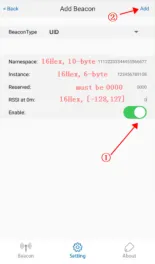


- Open the FeasyBeacon APP and connect to the beacon device.
- Add a new broadcast.
- Select UID broadcast type.
- Fill in UID Parameters.
- Click Finish.
- Display the new added UID Broadcast
- Click Save(Save the new added UID broadcast of the beacon)
- Jetzt, the added beacon UID broadcast will show on Feasybeacon APP